


What Is GPT Image 2.5?
GPT Image 2.5 is OpenAI's image model family with two options: Flare and Sunburst. Flare focuses on speed with image quality comparable to GPT Image 2, making it a starting point for quick creative variations. Sunburst focuses on higher overall image quality. Both improve precise editing and subject preservation for tasks such as product photography, marketing graphics, and restyling a scene from a reference image.
Use the online generator to create images from text, add a reference to guide the composition, and choose settings directly in your browser. For a product photo, describe the object, camera angle, surface, and light. For an edit, state what should change and which details should stay. A clear brief makes it easier to compare the result with your original idea.
GPT Image 2.5 vs GPT Image 2
Flare provides rapid generation with quality comparable to GPT Image 2, while Sunburst delivers higher image fidelity. Both models advance subject preservation and precise reference editing.
| Task | GPT Image 2 | GPT Image 2.5 Flare | GPT Image 2.5 Sunburst |
|---|---|---|---|
| Intended role | Standard generation and editing baseline | Speed priority with quality comparable to GPT Image 2 | Quality priority with higher overall fidelity |
| API quality options | auto, low, medium, high | auto, low, medium, high, xhigh, max | auto, low, medium, high, xhigh, max |
| Reference edits | Standard subject consistency against source inputs | Improved precise editing and subject preservation | Improved precise editing and subject preservation |
| How to choose | Maintain existing working prompt setups | Choose when turnaround speed is the priority | Choose for demanding details, text, and intricate edits |
GPT Image 2.5 Flare or Sunburst?
Understand how Flare and Sunburst address different visual production requirements, from rapid concept exploration to high-fidelity detailing.
Everyday Image Generation
GPT Image 2.5 Flare
Flare is designed for speed when exploring concepts, drafting compositions, or creating everyday images. Try the same brief across a few advertising layouts or product scenes, keeping the subject and lighting instructions fixed. Compare framing, readability, and unwanted changes before choosing a direction to refine. This keeps each variation useful to the next stage of your project.
Detailed Image Editing
GPT Image 2.5 Sunburst
Sunburst prioritizes higher image quality for demanding compositions and reference edits. Product still lifes, detailed posters, and scene restyling are useful starting points. Describe the details that matter most, such as a product silhouette, label placement, or room layout. Inspect the requested change and the surrounding image together, then narrow the next instruction if a detail drifts.
Visual Examples of GPT Image 2.5 Capabilities
Examine three visual compositions illustrating technical concept breakdowns, dense informative maps, and commercial studio product photography.
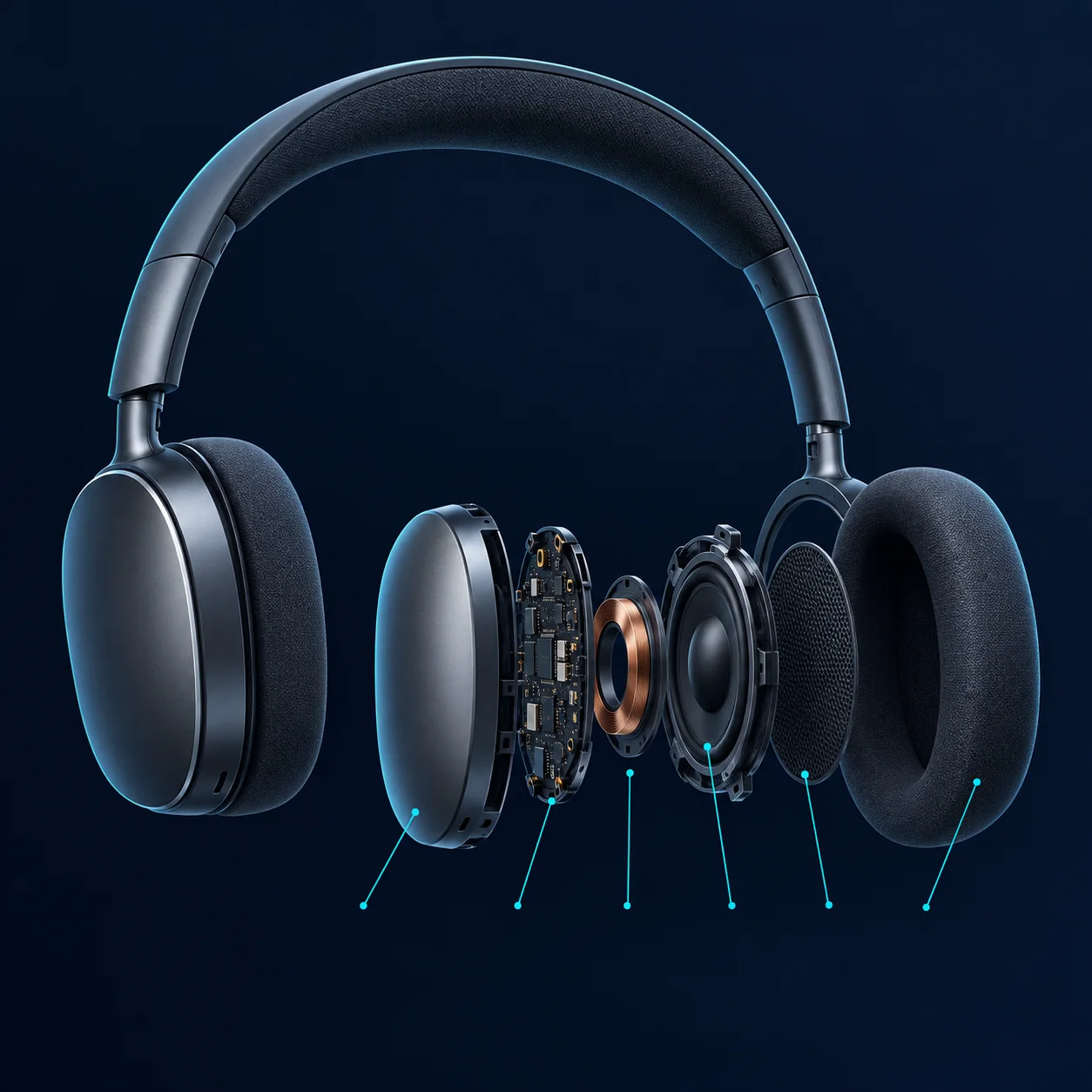
Hardware Exploded View
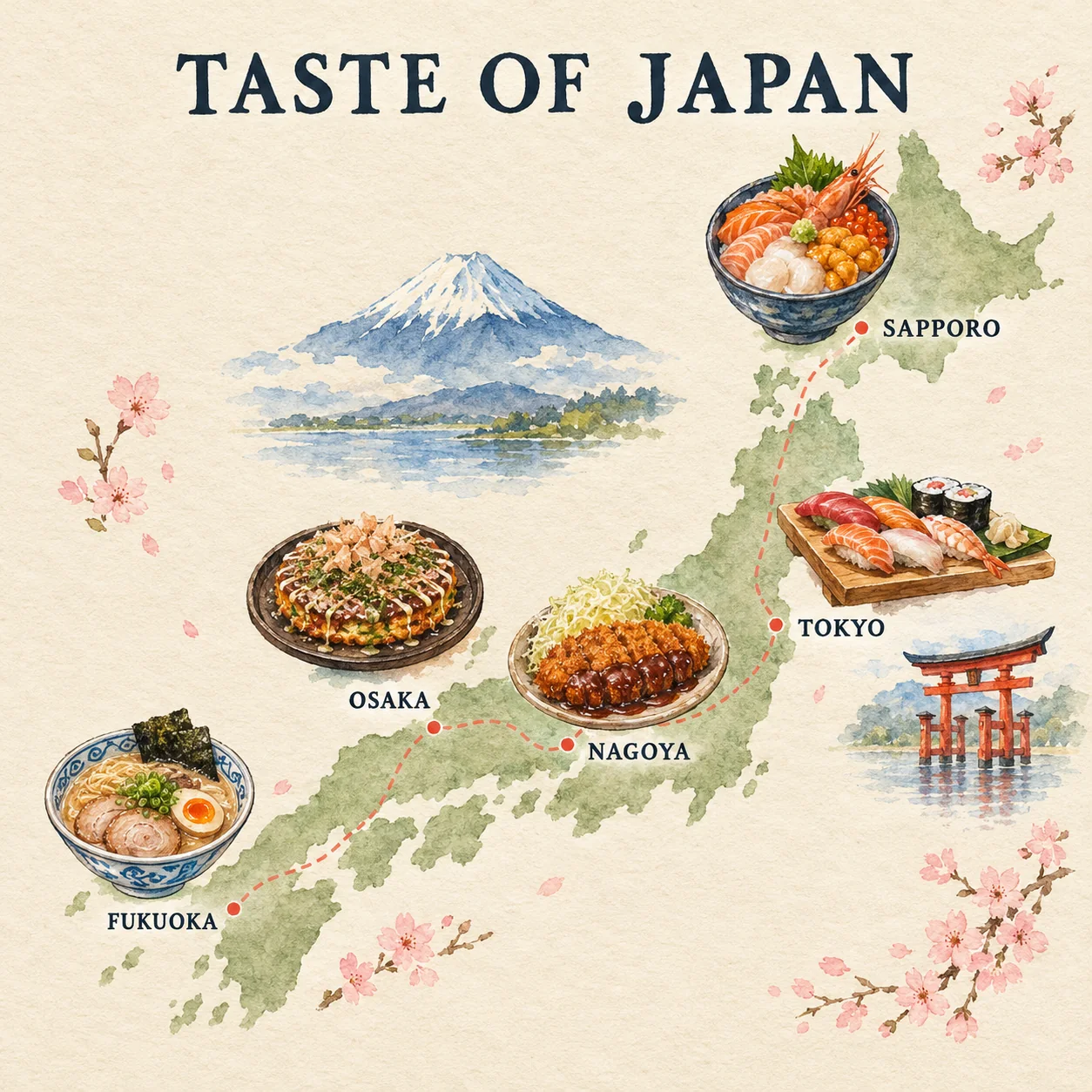
Illustrated Culinary Map
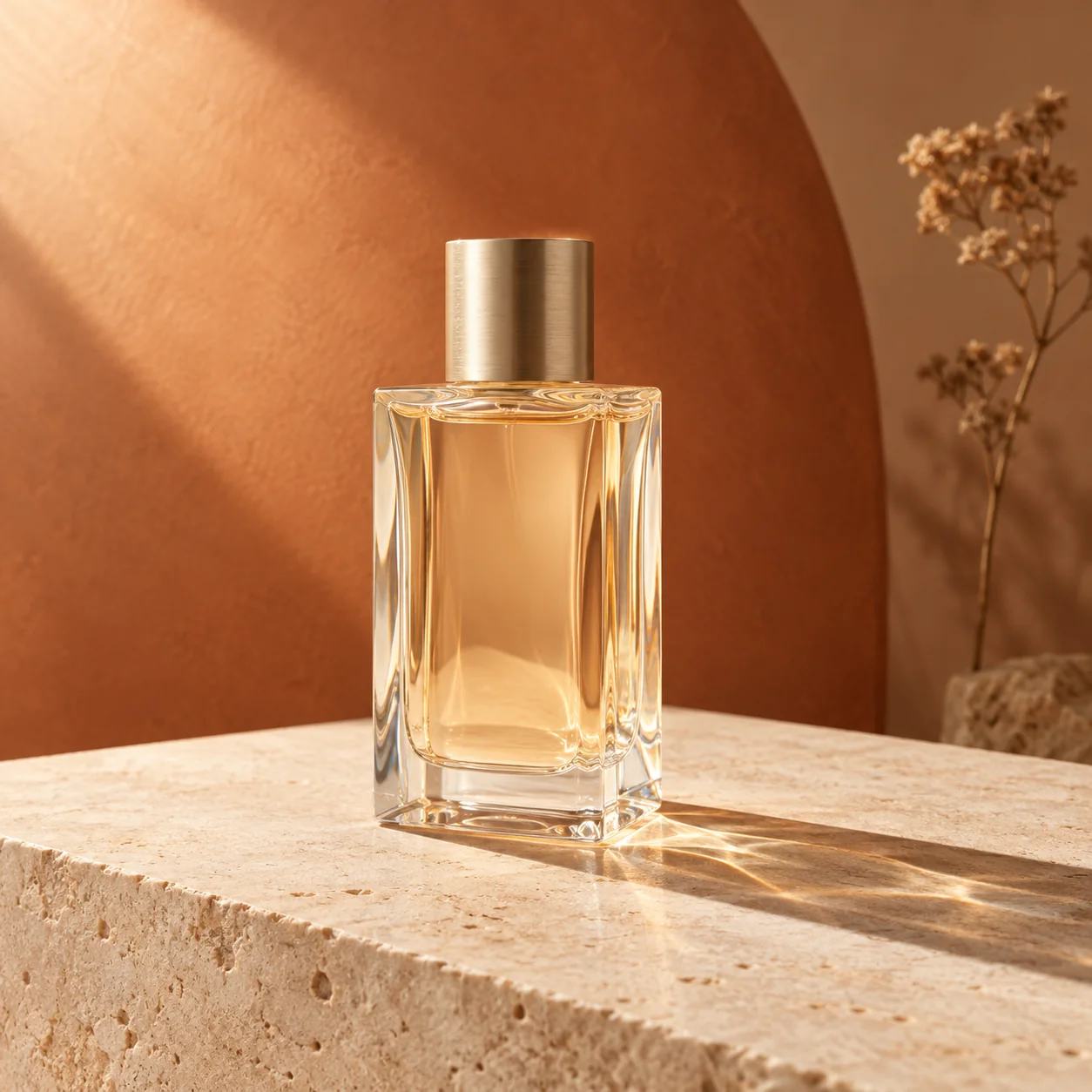
Perfume Commercial Still Life
How to Generate and Edit Images Online
Enter Prompt and Select Model Settings
Write a clear, descriptive prompt outlining your subject, lighting, and composition, then choose from the currently visible model options and aspect ratios in the workspace controls.
Upload Reference Image for Guidance
Attach a source image when you want to preserve composition or restyle an existing photo, indicating precisely which objects, structural boundaries, or spatial layouts should remain intact.
Generate and Revise the Result
Click generate to create your visual, inspect the output at full size against your brief, and iterate by making focused adjustments to your text prompt or reference guidance.
GPT Image 2.5 prompts to adapt
Copy any template directly into the generator and replace bracketed details with your subjects. Pick your desired aspect ratio separately in settings. Preview images illustrate complete outputs generated from these structured starting points.
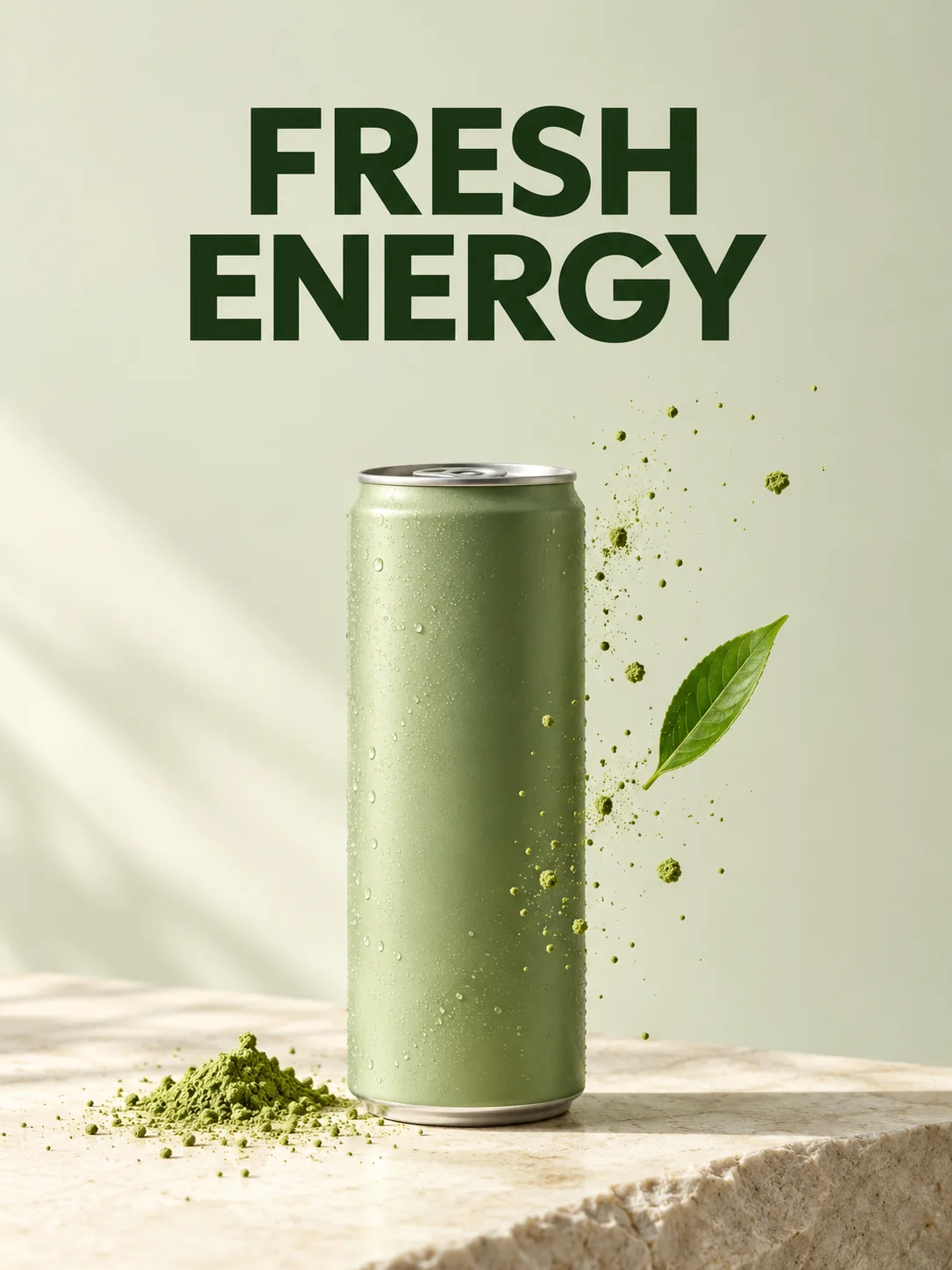
Commercial Ad Poster
Replace bracketed placeholders with your product and text. Set aspect ratio to 3:4 or 9:16 in the tool controls.
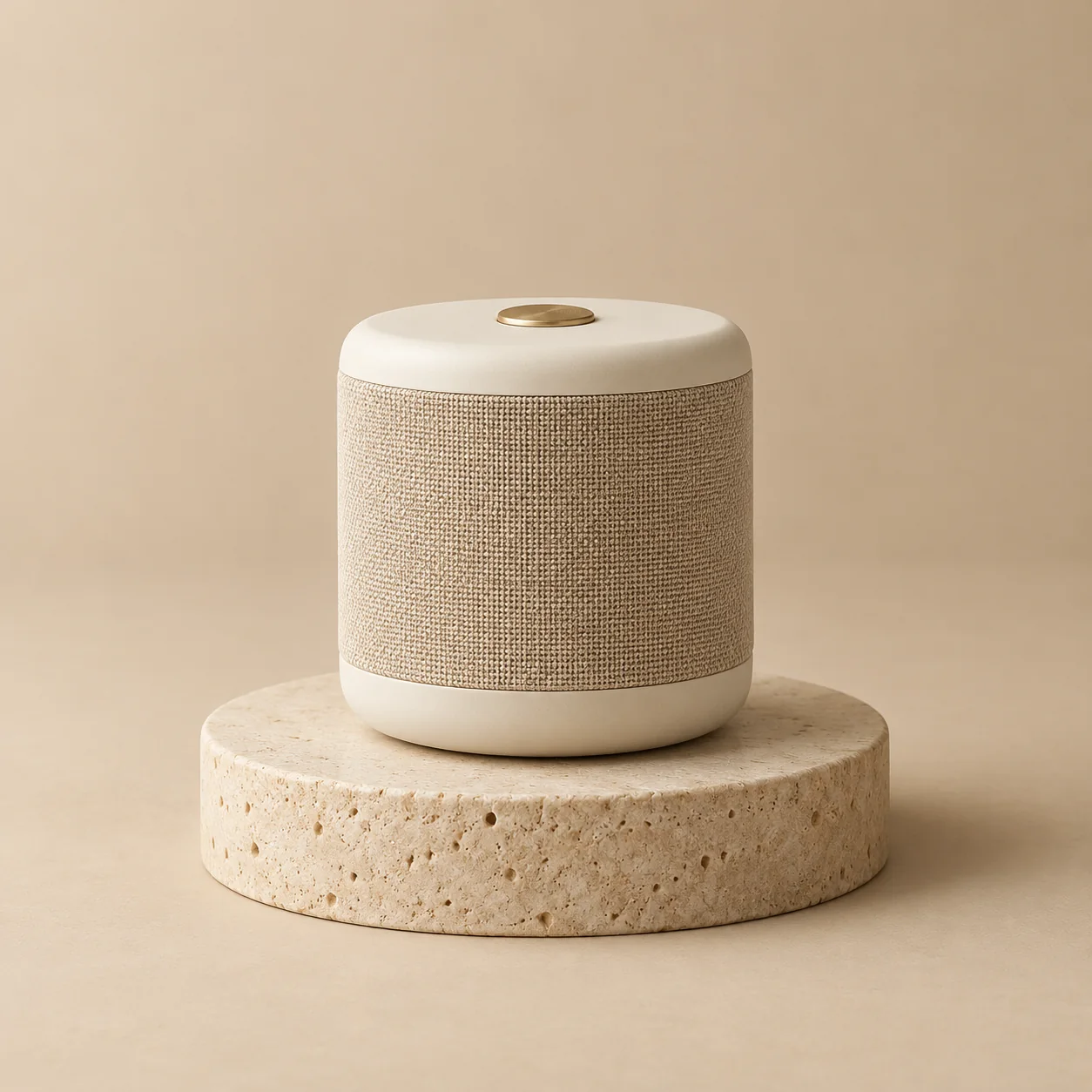
Studio Product Photo
Fill in your specific item and color palette. Select square 1:1 in the generation options.
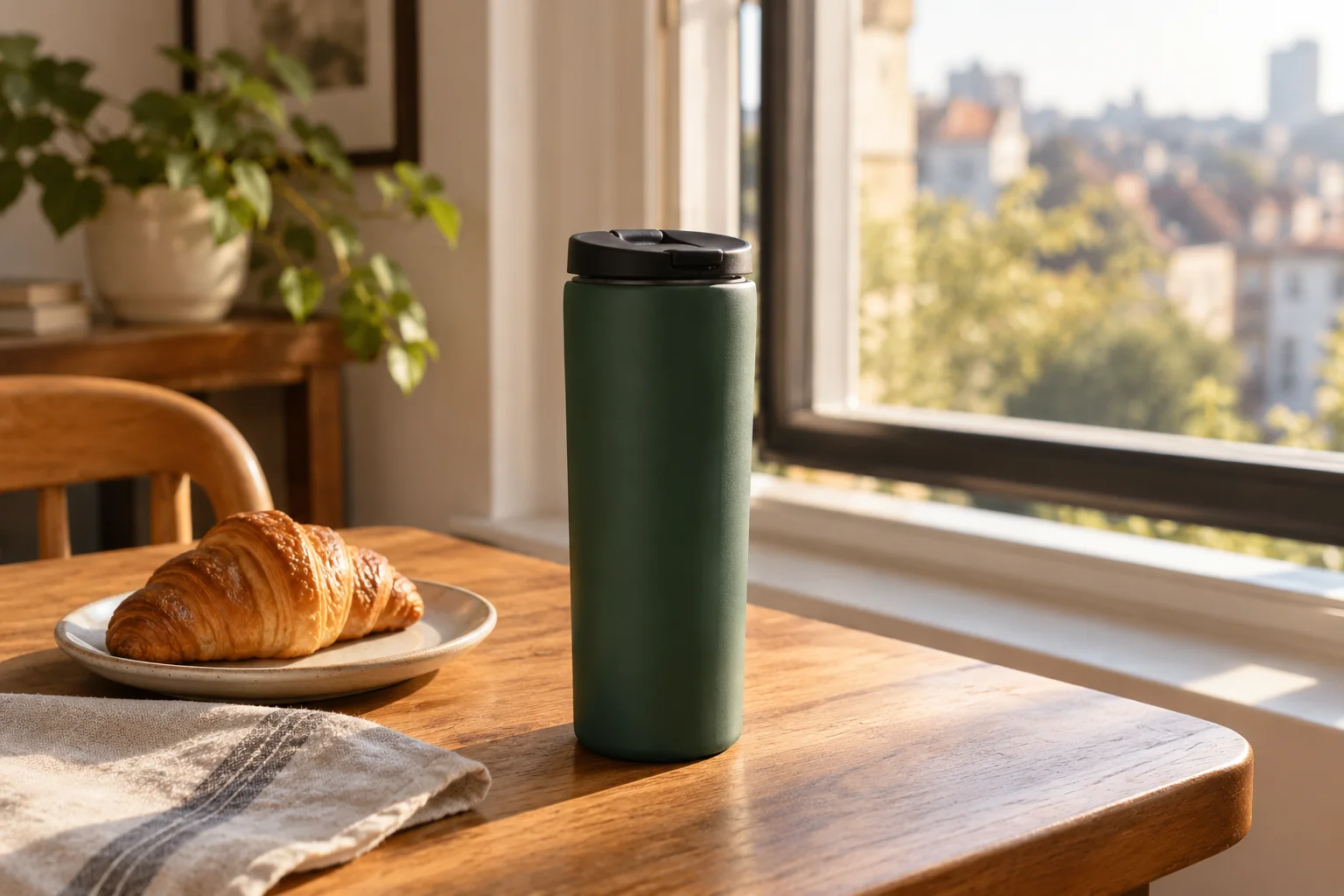
Product in Real Scene
Customize the featured object, surroundings, and time of day. Choose 16:9 or 3:2 aspect ratio in the workspace.
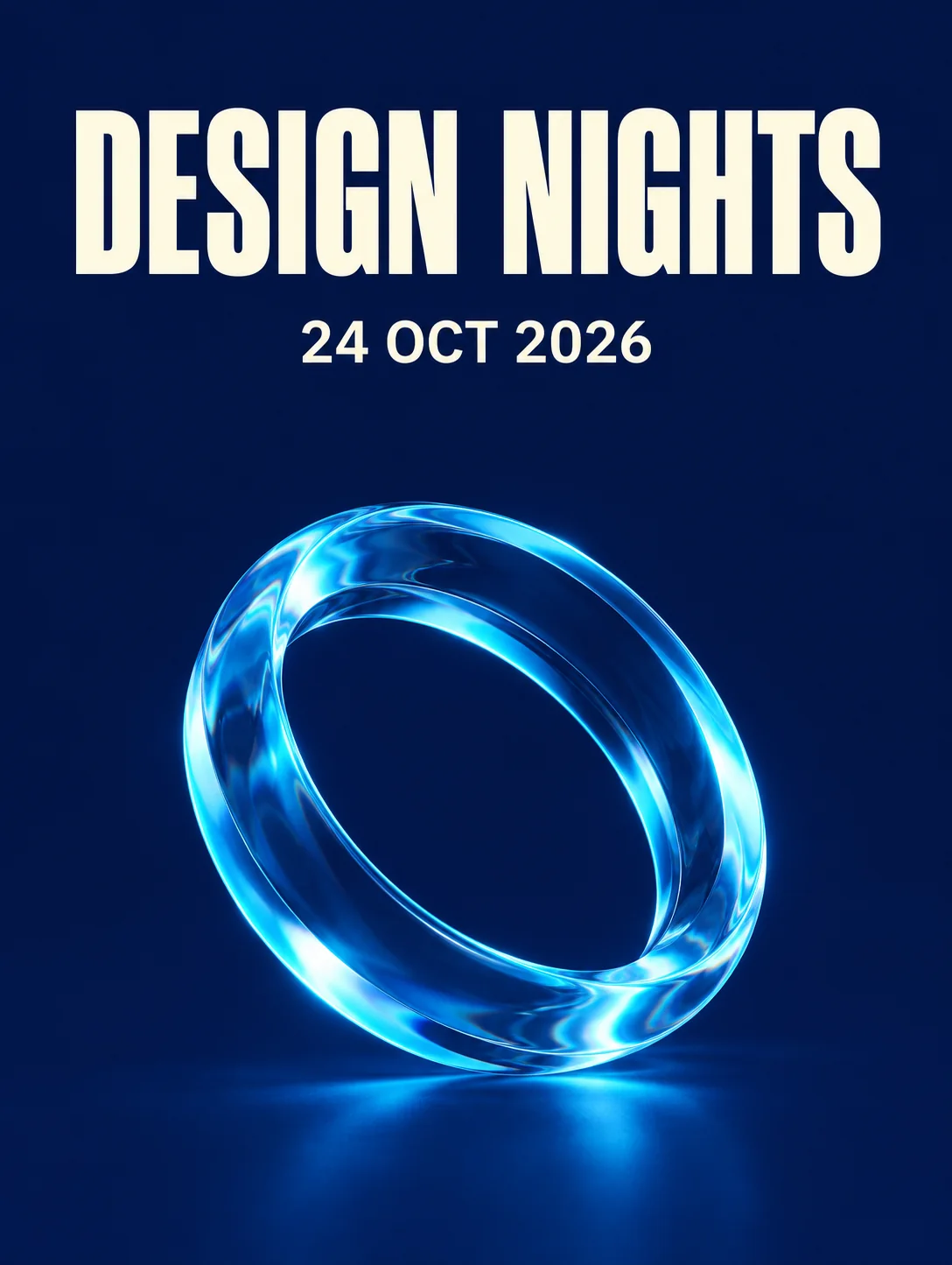
Exact Text Typography Poster
Replace the headline, date, and visual placeholders. Keep the wording short, then check every character and line break.
Explore curated prompt examples and creative compositions. Gallery showcases feature GPT Image 2 workflows to inspire prompt structure and styling.
Reference-Based Image Editing and Restyling
Change a room's materials, colors, or mood with a reference image. State which layout and perspective details to preserve, then compare the edit beside the original.
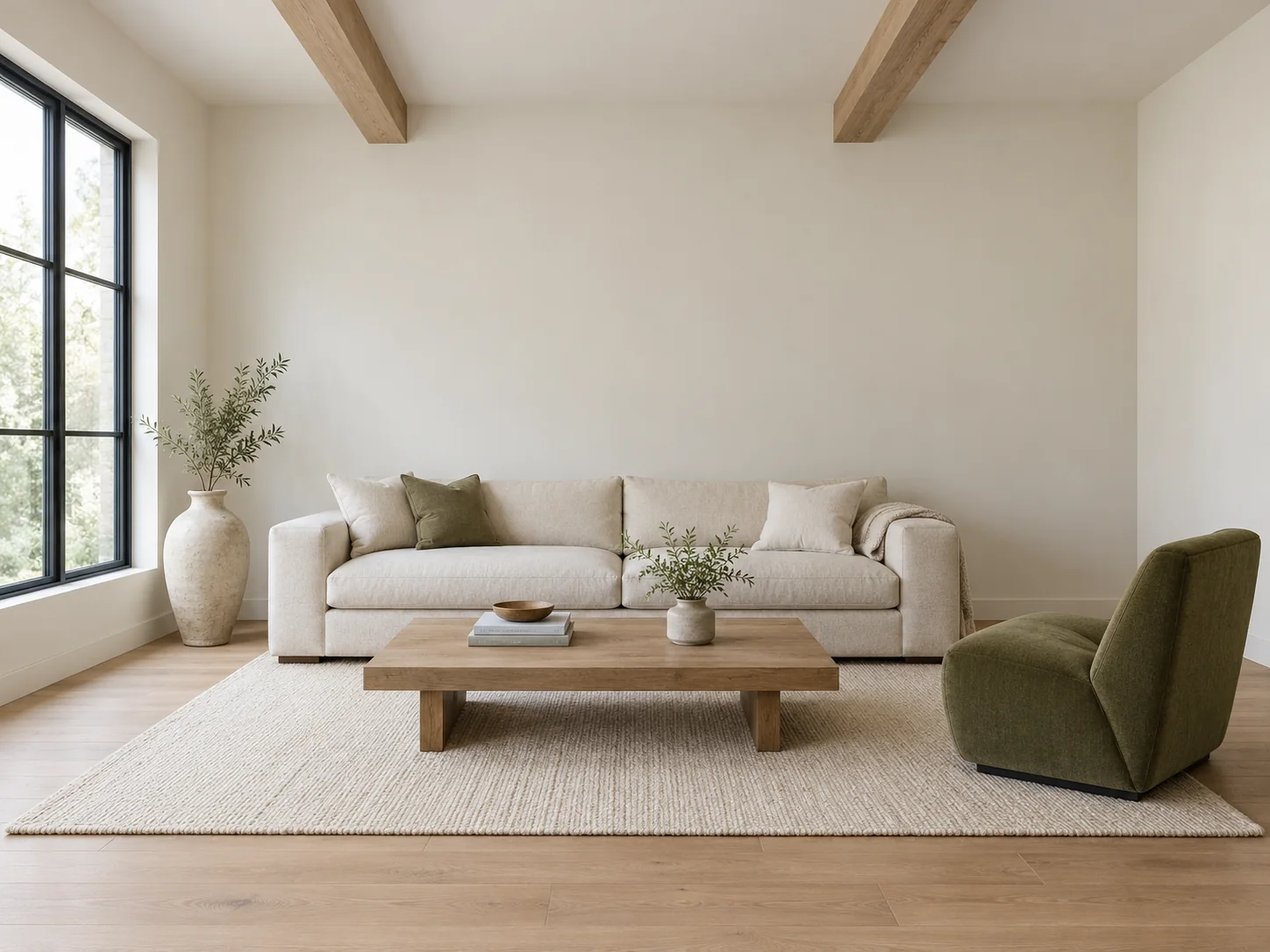
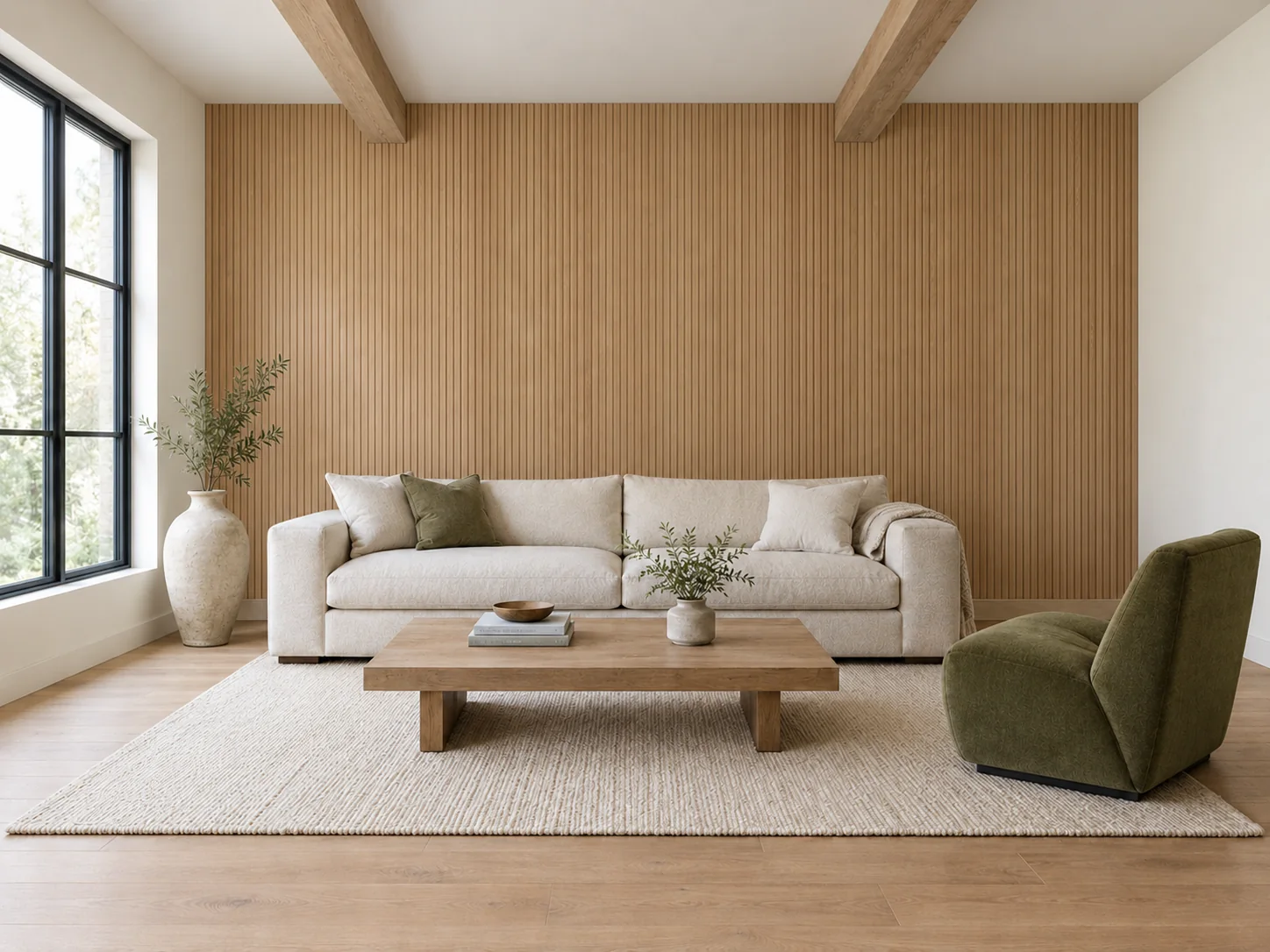
To execute an effective scene edit, structure your text instruction into two distinct components: what to change and what to keep. For an architectural restyling task, instruct the model to update the wall material to warm vertical oak slats while explicitly commanding it to maintain camera height, window openings, ceiling beams, and sofa placement.
Review the rendered result directly beside your source image to verify that perspective lines, floor contact, and fixture positions stay anchored. If an unprompted element shifts unexpectedly, refine your text to isolate the target modification further. For projects requiring pixel-identical branding or untouched areas, combine the generated layer with the original in a graphic editor.
How to get accurate text in AI images
Image models can render short phrases, but complex typography often drifts. Use these direct practices to get clear lettering in your graphic concepts.
1.Quote Exact Words Directly
Put the complete phrase in quotation marks, for example: write "PURE GLOW" exactly once. Specify casing and ask for no extra words, then proofread the result.
2.Keep Text Short and Focused
Limit embedded copy to short headlines, badges, or brand names. Avoid expecting multi-line body paragraphs to render without character errors.
3.Specify Position and Contrast
Direct the model where to position words, such as centered along the top margin with strong dark-on-light tonal contrast against the background.
4.Use Targeted Text Revisions
If a generated letter is misspelled, keep the rest of the prompt identical and instruct the model specifically to fix the misspelled characters.
Reliable Graphic Production Workflow
- 1.Generate a clean background or product scene with enough empty space for the final copy.
- 2.Import your generated visual into a specialized layout tool like Figma or Adobe Photoshop to add exact vector brand typography.
- 3.Audit alignment, font kerning, and color contrast, then export the final combined asset at your required production dimensions.
GPT Image 2.5 pricing and credits
Manage your visual creation workflow through transparent website credits and signed-in usage allowances. Generation costs are always shown before processing.
| Usage | Credits |
|---|---|
| GPT Image 2.5 Flare / Sunburst · 1K | 7 credits |
| GPT Image 2.5 Flare / Sunburst · 2K | 24 credits |
| GPT Image 2.5 Flare / Sunburst · 4K | 36 credits |
| Generation within remaining free allowance | 0 credits |
| Generation after free allowance | 5 credits |
| Skip queue while free allowance remains | 5 credits |
Flare and Sunburst each cost 7 credits at 1K, 24 at 2K, or 36 at 4K. Free AI Image uses a separate allowance and pricing. Review the displayed cost before generating; queue skipping and paid generation in the free channel are alternative charges, not combined fees.
Pricing
Choose the plan that fits your creative needs. Generate stunning AI images with ease.
GPT Image 2.5 FAQ
What is GPT Image 2.5 and how do Flare and Sunburst differ?
GPT Image 2.5 is OpenAI's image model family with Flare and Sunburst. Flare focuses on speed with quality comparable to GPT Image 2, while Sunburst prioritizes higher image quality. Both improve precise reference editing and subject preservation; review the result against the details that matter to your project.
How do I generate images online in this workspace?
To generate images, enter a descriptive prompt into the text field and select from the currently visible model and aspect ratio settings. No API key or technical configuration is needed to begin creating visuals. Once configured, click the generate button to process your request directly within your web browser.
Is there a free quota to create images on this website?
Signed-in users receive a limited free generation allowance to explore the tool without upfront payment. Your remaining balance is clearly displayed inside the generator interface so you can track your current usage. Once this allowance is exhausted, you can continue generating visuals by utilizing website credits.
How does reference image editing work, and will my subject be perfectly preserved?
Reference editing lets you upload a source photo and submit text instructions to modify specific elements while retaining overall composition. While GPT Image 2.5 offers improved subject preservation, minor shifts in fine details or geometry can still occur. Always review your generated result side by side against the original reference.
Can I download images in custom resolutions or with transparent backgrounds?
Choose Flare or Sunburst, then select 1K, 2K, or 4K. For a transparent background, select 1K and set Background to Transparent. The 27:16, 16:27, 9:8, and 8:9 ratios support 1K only. For exact pixel dimensions, crop and export the finished image in a design editor.
How does GPT Image 2.5 compare to other generative image models?
Rather than looking for a universal winner, evaluate models according to your project's specific creative requirements. Test identical prompt briefs across available tools to compare prompt adherence, visual coherence, typography accuracy, and processing speed. Choosing the best tool depends on which output meets your brief with minimal manual retouching.
How many credits does an image cost?
Each generation displays its exact credit cost before you confirm the task, depending on the chosen model and settings. Through the Free AI Image channel, generations within your allowance cost 0 credits, while subsequent requests cost 5 credits. Skipping the queue while allowance remains is an alternative 5-credit option.
How should I use the prompt templates and image gallery?
You can adapt the copyable templates on this page by replacing placeholder details with your specific subject, lighting, and composition notes. To explore further creative ideas, browse our prompt gallery, which showcases practical GPT Image 2 community examples. Study those prompt layouts to structure effective briefs for your own projects.
What should I do if the generator misinterprets text or renders spelling errors?
Enclose your required wording within quotation marks and specify typography placement clearly in your prompt description. Keep phrasing direct and avoid conflicting aesthetic adjectives that might clutter the composition. Alternatively, generate a clean visual background without lettering and overlay final high-resolution marketing copy using your favorite graphic design software.
What should I do if an image task runs slowly or fails?
Check your task status list to ensure a request is not still actively pending before submitting another generation. Verify your prompt wording, reference image format, and credit balance to prevent repeated errors. If a task fails completely, review your input settings before re-submitting to avoid generating unintended duplicate requests.
Start Creating with GPT Image 2.5
Enter your prompt, select your preferred settings, and generate compelling visuals with precision and consistency in the online workspace.
Open Generator Workspace